
How to Manage the ESA S875 List of Programmes
2026-04-22

The ESA S875 List of Programmes is a core function of the ESA S875 CNC controller, directly impacting the efficiency of press brake operations. If you are wondering how to manage this programme list, this article offers clear, practical guidance. I will explain how the programme list works, how to access, organize, and maintain stored programmes, and how proper management helps reduce errors and improve production efficiency. Whether you are setting up programmes for the first time or optimizing daily operations, this guide is designed to help you use the ESA S875 controller with greater confidence.
Understanding the ESA S875 List of Programmes
The ESA S875 List of Programmes serves as the central interface where all bending programmes are stored, viewed, and managed on the ESA S875 CNC controller. Each programme includes bending sequences, tooling data, and machine parameters that directly influence press brake operation.
By managing the programme list correctly, operators can reduce setup time, prevent accidental data loss, and ensure that the correct bending programme is always used for production.
How to Access the ESA S875 Programme List
Step 1: Opening the Programme List on ESA S875
To manage the ESA S875 List of Programmes, first access the programme list screen from the controller interface.
Press
This screen displays all programmes currently stored in the NC memory, along with their names and basic information.
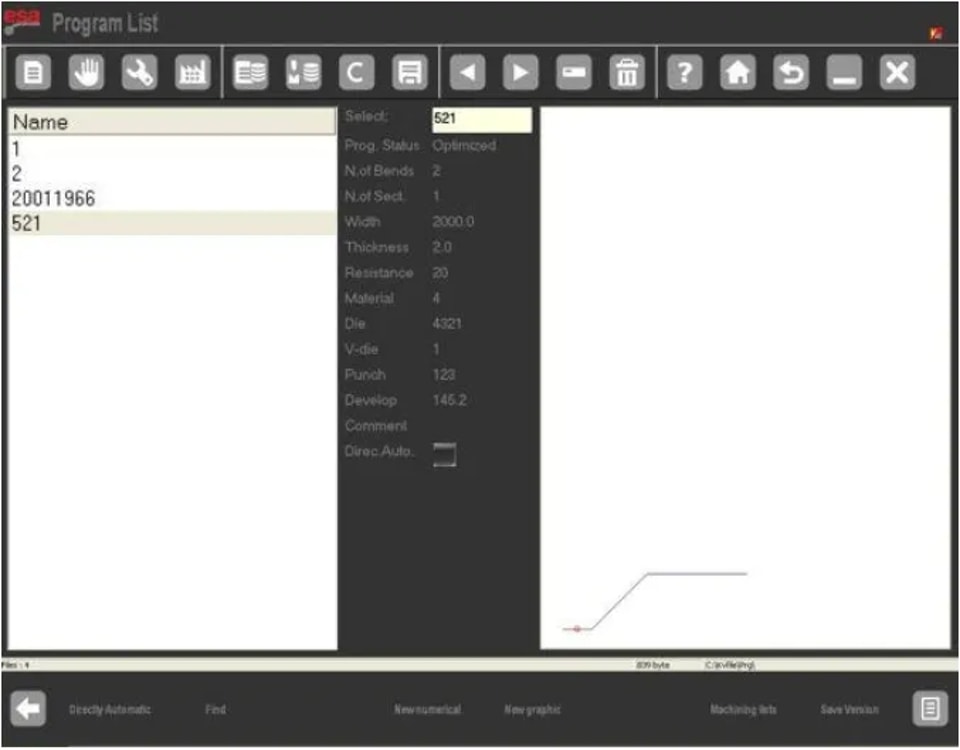
l The window on the left is the list window.
l The central boxes contain the programme data on which the cursor is positioned (on the list).
l The window on the right shows a preview of the punch on which the cursor is found.
The list allows quick navigation between programmes and serves as the starting point for editing, copying, saving, or deleting programme data.
Step 2: Viewing Programme Preview
The preview function allows operators to visually verify a programme before running it. When a programme is selected in the ESA S875 List of Programmes, the preview shows bending steps and graphical information, helping confirm that the correct programme has been chosen.
l Press the key to open the menu.
l Select the item Preview (4).
l The window preview window will be disabled.
l To re-enable it just repeat the steps above.
Using the preview function reduces the risk of running an incorrect programme and improves operational safety, especially when similar programme names are stored in the system.
Copying and Renaming Programmes on ESA S87
Step 3: How to Copy a Programme
Copying a programme is useful when creating similar bending jobs based on an existing programme. From the ESA S875 List of Programmes, select the programme to be copied and use the copy function to create a new programme with a different name.
l Press the menu key to open the menu.
l Select the item Copy (0).
l A window will open in which it will be necessary to enter the name of the programme.
l After entering the name, move onto the [Confirm] key and press [ENTER].
This method avoids re-entering data and ensures consistency between similar production jobs.
Step 4: Renaming a Programme
Renaming programmes helps maintain a clear and structured programme library. Select the target programme in the list, activate the rename function by selecting the item Rename(1), and enter a new, descriptive name that reflects the workpiece or job number.
Clear naming conventions improve programme identification and reduce selection errors during daily operations.
Saving and Deleting Programmes in ESA S875
Step 5: Saving a Programme
After editing or creating a programme, it must be saved to ensure that all changes are stored in the NC memory. Saving programmes regularly prevents data loss caused by unexpected shutdowns or power interruptions.
Step 6: Deleting a Programme
To remove obsolete or unused programmes, select the programme in the ESA S875 List of Programmes and use the delete function. Deleting unnecessary programmes helps keep the list organized and improves navigation efficiency.
Managing Programmes with a USB Device on ESA S875
Step 7: Saving Programmes from NC to USB
The ESA S875 controller allows programmes to be saved to a USB device for backup or transfer purposes. Operators can save a single programme or choose to save all programmes stored in the NC to a USB device.
This function is recommended for data backup and programme sharing between machines.
Step 8: Loading Programmes from USB to NC
Programmes stored on a USB device can be imported back into the NC memory. Users may load individual programmes or transfer all programmes from the USB device to the ESA S875 controller.
Proper USB programme management ensures data security and simplifies programme restoration.
Changing the Work Unit in the ESA S875 List of Programmes
Step 9: Switching Between Metric and Imperial Units
The ESA S875 system allows operators to change the work unit used in programmes.
l Press this key to open the Programme list.
l Press the menu key to open the menu.
l Press 7 » Backup unit.
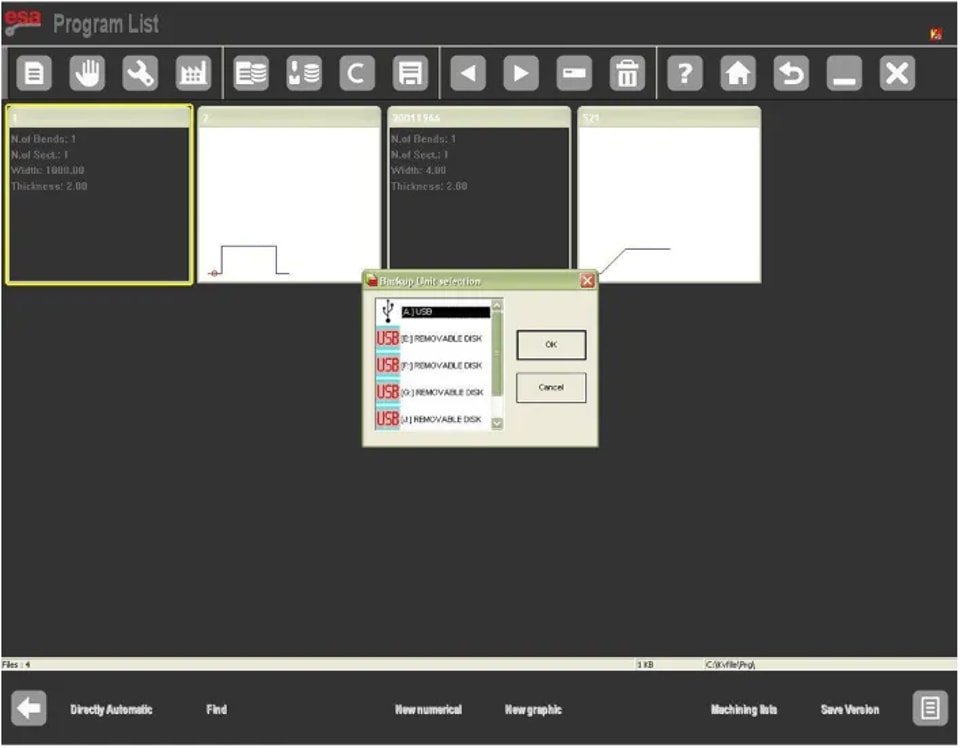
When the work unit is changed, all dimensional values in the programme are updated accordingly.
Before running a programme, always verify the selected work unit to ensure consistency with tooling dimensions and material specifications, reducing the risk of bending errors.
Conclusion
Effective management of the ESA S875 List of Programmes is essential for maintaining accurate, efficient, and safe press brake operations. By correctly accessing the programme list, previewing programmes, copying and renaming data, managing USB backups, and verifying work units, operators can significantly reduce errors and improve daily productivity.
For more detailed guidance on ESA S875 controllers, press brake operation, or CNC programme management, please contact JUGAO for professional technical support. You can also explore our related documentation and control system resources, which are available on our website.
Contact Us