
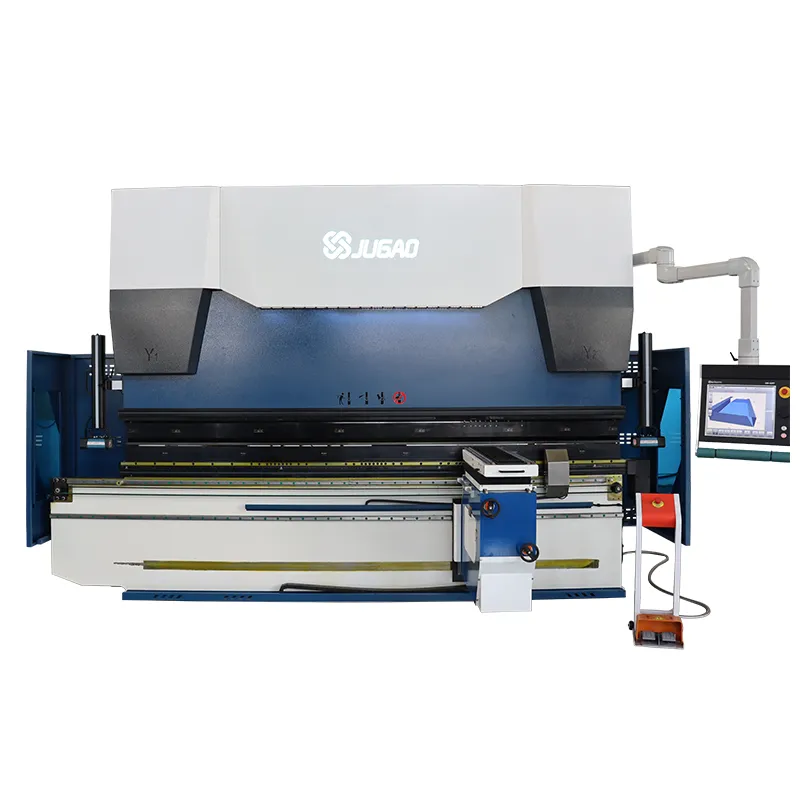
How to Fix JUGAO Press Brake Touch Screen Not Responding
2026-04-16

Table of Contents
• Common Causes of JUGAO Press Brake Touch Screen Malfunction
○ Screen Surface Contamination or Physical Damage
○ CNC System Freeze or Software Abnormality
○ Loose or Damaged Electrical Connections
○ Touch Screen Hardware Fault
• Step-by-Step Troubleshooting for JUGAO Press Brake Touch Screen
○ Step 1: Properly Clean the Touch Screen
○ Step 2: Reboot the CNC Control System
○ Step 3: Check Software Errors and Calibration
○ Step 4: Inspect Internal Wiring and Connections
○ Step 5: Test with External Input Equipment
○ Step 6: Replace the Touch Screen Panel (If Needed)
• Preventive Maintenance for JUGAO Press Brake Touch Screen
○ Routine Cleaning and Protection
○ Stable Power Supply Guarantee
○ Standardized Operation Practices
• Frequently Asked Questions
○ Why does my JUGAO press brake touch screen stop responding completely?
○ How to calibrate the JUGAO press brake touch screen?
○ Can the machine run normally when the touch screen breaks down?
○ How often should the touch screen be maintained?
• Conclusion
When the touch screen of your JUGAO press brake suddenly becomes unresponsive, it will definitely bring a lot of trouble, especially when it disrupts the production schedule and delays order delivery. This problem is more prevalent than most operators imagine, and in most situations, it can be fixed rapidly without replacing the whole control system. In this guide, we will elaborate on the most frequent causes, provide a step-by-step troubleshooting method, and offer practical solutions to restore your press brake to normal working status.
Common Causes of JUGAO Press Brake Touch Screen Not Responding
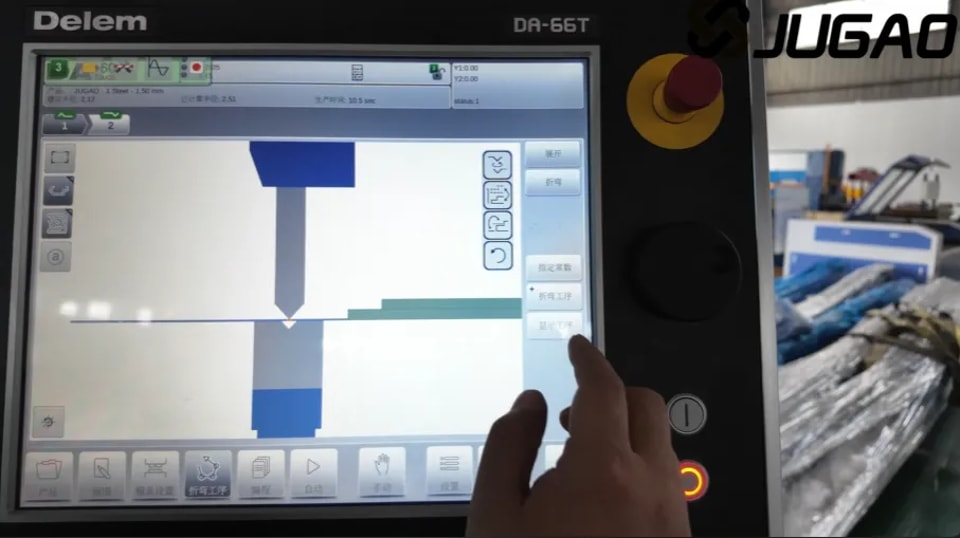
Before taking repair measures, it is essential to figure out the root of the problem. The unresponsiveness of JUGAO press brake touch screen is generally attributed to hardware, software or environmental factors.
Screen Surface Contamination or Damage
Dirt, oil stains or metal dust on the screen surface is one of the simplest but easily ignored causes. In the metalworking production environment, these contaminants will directly affect the touch sensitivity of the screen.
• Oil film will weaken the electrical conductivity of the touch screen
• Metal powder particles will block the transmission of touch signals
• Surface scratches will damage the internal touch induction layer
System Freeze or Software Glitch
CNC control systems such as Delem, ESA and Cybelec may crash due to the following reasons:
• Internal software program bugs
• Overloaded system memory
• Non-standard shutdown operation
Under such circumstances, the touch screen may seem unresponsive, while the hardware components are intact.
Loose or Damaged Electrical Connections
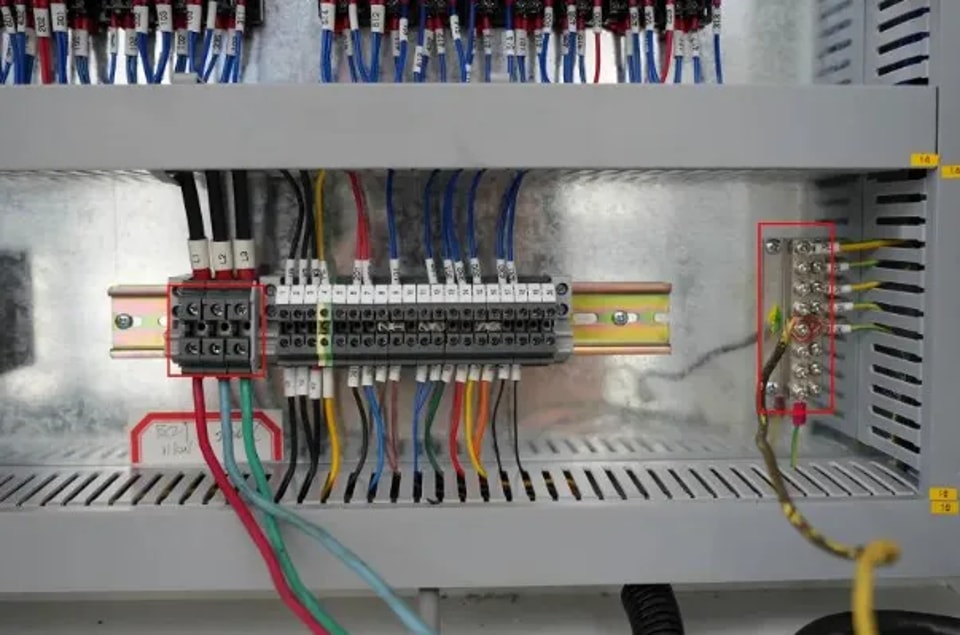
The normal operation of the touch screen depends on the stable transmission of internal cables and connectors. Once these parts are loose or damaged, the touch signals cannot be transmitted normally.
• Loose flexible flat cables
• Worn-out connectors
• External electrical signal interference
Touch Screen Hardware Failure
In individual cases, the problem is caused by aging or damaged hardware:
• Wear and tear of the touch panel
• Failure of the control mainboard
• Malfunction of internal induction sensors
Step-by-Step Guide to Fix JUGAO Press Brake Touch Screen Issues
We adopt a systematic troubleshooting process to quickly locate and solve the touch screen problems of JUGAO press brake.
Step 1: Clean the Touch Screen Properly
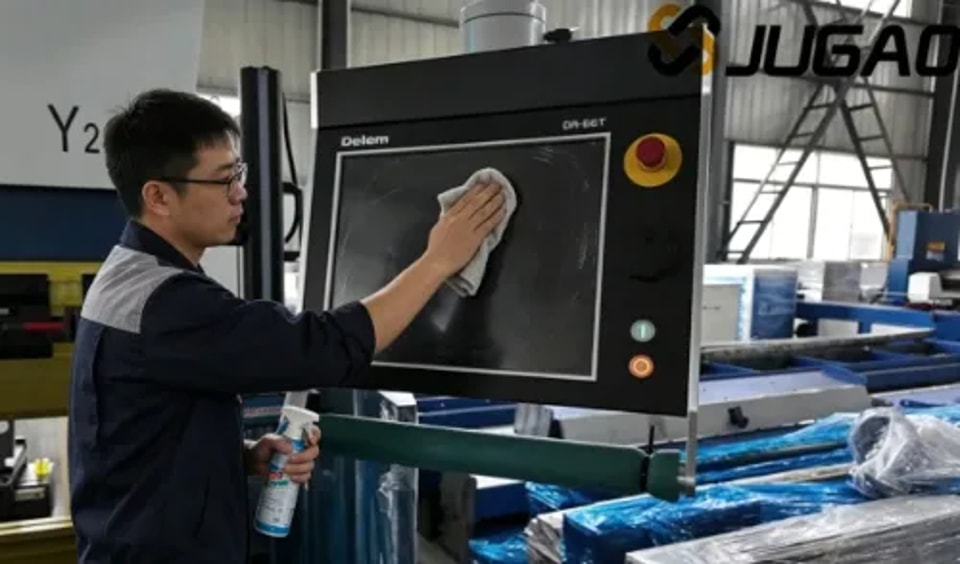
Start with the simplest and most direct solution.
• Shut down the machine completely
• Use a soft microfiber cleaning cloth
• Wipe the screen with an alcohol-based cleaning agent (do not use water)
This step can remove oil stains, dust and debris that interfere with touch signals.
Step 2: Restart the CNC Controller System
A simple system restart can resolve most software-related faults.
• Turn off the power supply of the machine
• Wait for 2 to 3 minutes
• Restart the CNC control system
If the fault is caused by a temporary system glitch, the touch function will return to normal after restarting.
Step 3: Check for Software Errors or Calibration Issues
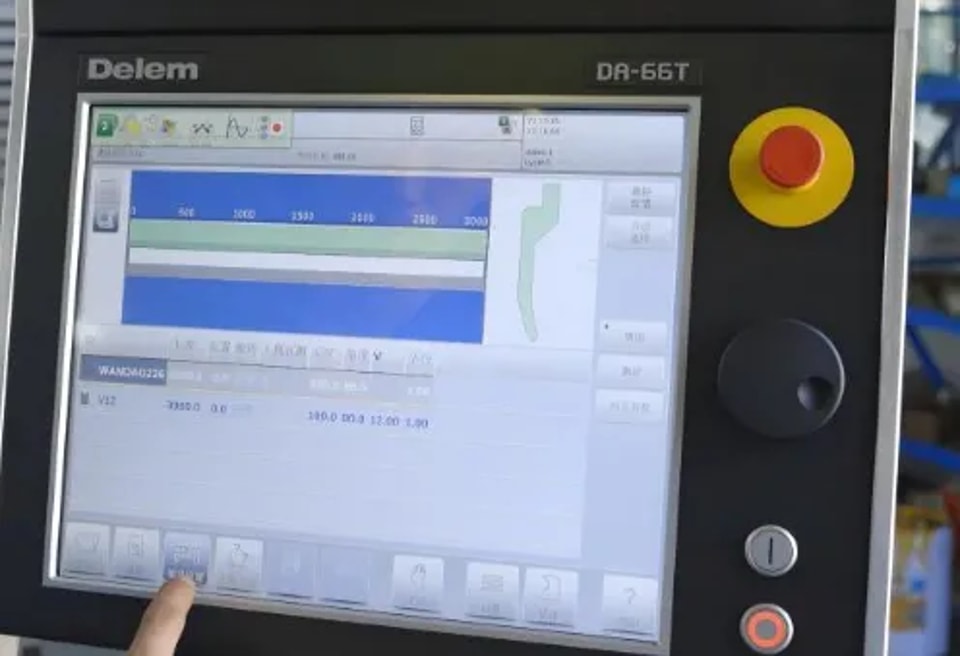
Inaccurate touch response is mostly caused by calibration deviation.
• Enter the system setting interface
• Run the touch screen calibration program
• Update the CNC system software when necessary
This step is particularly applicable when the screen has partial response but inaccurate positioning.
Step 4: Inspect Internal Wiring Connections
If the fault remains unsolved, check the internal parts of the control cabinet.
• Cut off the power before disassembling and inspecting
• Check the flexible flat cables at the back of the screen
• Make sure all connectors are firmly plugged in
Loose connections are the main cause of intermittent touch failure.
Step 5: Test with External Input Devices
Verify whether the fault is related to touch screen hardware:
• Connect a USB mouse (if the system supports it)
• Try to operate and navigate the system interface
If the system works normally with an external mouse, the fault is most likely in the touch panel itself.
Step 6: Replace the Touch Screen Panel (If Necessary)
If all the above steps fail to fix the problem, the touch screen may be permanently damaged.
• Replace the touch panel separately if possible
• Avoid replacing the entire controller unless it is necessary
• Use original or compatible replacement parts
Preventive Maintenance for JUGAO Press Brake Touch Screen
In practical operation, preventive maintenance is more effective than post-failure repair.
Regular Cleaning and Protection
• Clean the touch screen every day
• Do not touch the screen with oil-stained gloves
• Paste a protective film on the screen when needed
Stable Power Supply
Voltage instability will damage the electronic components of the touch screen.
• Equip with a voltage stabilizer
• Avoid sudden power failure and forced shutdown
Proper Operating Habits
• Do not press the screen with excessive force
• Follow the standard startup and shutdown procedures
• Keep the inside of the control cabinet dust-free
Frequently Asked Questions
Why is my JUGAO Press Brake Touch Screen not responding at all?
This situation is usually caused by system crash, loose internal connections or hardware damage. It is recommended to start with cleaning and restarting, and then check the internal components step by step.
How do I calibrate a JUGAO Press Brake Touch Screen?
Enter the setting menu of the CNC controller, select the touch screen calibration option, and follow the on-screen prompts to complete the touch accuracy calibration.
Can I operate the machine if the touch screen fails?
Some systems support temporary operation with an external mouse or keyboard, but it is recommended to repair the touch screen as soon as possible to ensure full-function operation.
How often should I maintain the touch screen?
It is recommended to clean the screen daily and check the internal connections monthly to keep the touch screen running stably.
Conclusion
The unresponsive touch screen of JUGAO press brake does not necessarily mean a serious equipment failure. In most cases, simple operations such as cleaning, restarting and checking connections can quickly solve the problem. By following the standardized troubleshooting process and carrying out regular preventive maintenance, you can reduce production downtime and keep the press brake in efficient and stable operation.
If you still cannot resolve the fault or need professional technical support, please contact our after-sales team for professional maintenance guidance and spare parts solutions.
Contact Us